How to install drivers for a monitor?
When installing drivers for a monitor, the first step is to check the device model. This will allow you to find the appropriate driver on the manufacturer’s website. Usually, model information is located on the back panel of the monitor or in the documentation.
Then visit the official website of the manufacturer, find the “Support” or “Downloads” section where you can select the corresponding model. Download the driver that matches your operating system. Make sure you download the latest version to avoid possible compatibility issues.
After downloading, open the installer file and follow the on-screen instructions. If the system offers to restart the computer after installation, agree — this will help complete the process correctly. After rebooting, check the display settings in the control panel to ensure the monitor works in optimal mode and displays images correctly.
If you have any questions, use forums or support services where you can get help from other users or company staff. Community support is often very useful!
Determining the monitor model and manufacturer
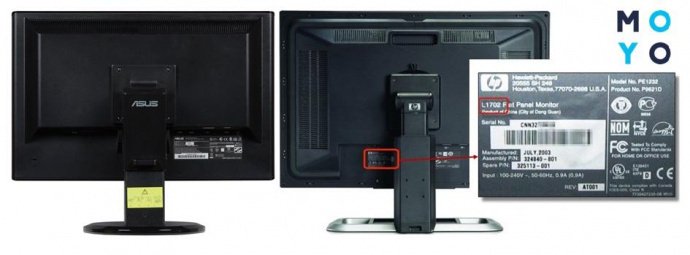
To install drivers, it is important to know the exact model and manufacturer of the monitor. This will help avoid errors and ensure hardware compatibility.
- Check on the monitor body: Find the sticker on the back or bottom of the monitor. It usually contains information about the model and manufacturer.
- Using Device Manager: In Windows, right-click “Start”, select “Device Manager”, expand the “Monitors” section. The name of your device will be displayed here.
- Third-party software: Download utilities such as Speccy or HWiNFO. They provide detailed system information, including monitor data.
After obtaining information about the model and manufacturer, you can find the appropriate drivers on the company’s website or specialized resources.
Searching for drivers on the internet
Start with the official website of the monitor manufacturer. Such websites usually have support sections where you can find the necessary drivers. Simply enter your monitor model in the site search bar, and you will be provided with information about available drivers.
If information on the manufacturer’s website is unavailable, turn to popular driver download resources such as DriverPack Solution or DriverHub. These tools allow automatic detection and installation of drivers, simplifying the process.
A search engine query can also be useful. Use the exact name of your monitor model along with keywords “drivers” or “download”. For example, “Samsung U28E590D drivers”. This will help find up-to-date download links.
You may also find useful advice or driver links on forums or specialized sites such as Reddit or TechSpot from users who have already faced a similar issue.
Do not forget to check driver relevance. Drivers downloaded from untrusted sources may cause security or performance issues. Use only reliable resources and verify them before downloading.
If internet access is limited, use another computer with internet access to download drivers and save them to a USB drive. Then transfer the files to the required computer and install the drivers manually.
Always keep backups of current drivers before installing new ones so you can roll back to a previous version if problems occur.
| Search method | Description |
|---|---|
| Official website | Find drivers on the monitor manufacturer’s website. |
| Automatic tools | Use programs like DriverPack Solution for automatic installation. |
| Search engines | Search for drivers by the exact model name. |
| Forums and communities | Get advice and links from other users. |
| USB transfer | Download drivers on another computer and transfer them. |
Manual driver installation via Device Manager
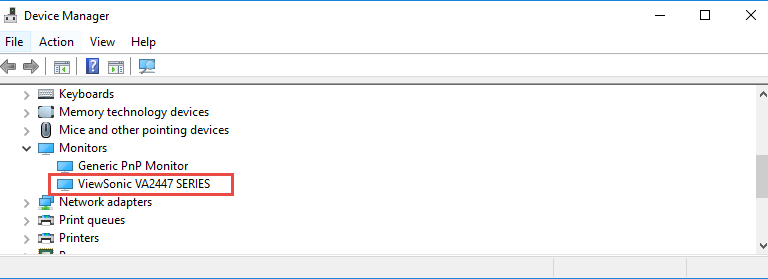
Open Device Manager by pressing Win + X and selecting the corresponding option from the menu. Find the Monitors section and expand it. Then select your monitor, right-click it, and choose Update driver.
On the next screen select Browse my computer for drivers. Then choose Let me pick from a list of available drivers. Select the required driver from the list. If the driver is not present, click Browse and specify the path to the downloaded driver file on your computer.
Then click Next. Wait for installation to complete. If successful, the system will notify you that the process is finished. Restart your computer for changes to take effect. Check whether the monitor works correctly.
If problems occur, open Monitor Properties via the context menu in Device Manager and check the driver status in the Driver section. If necessary, consider uninstalling the driver and reinstalling it.
Using programs for automatic driver installation
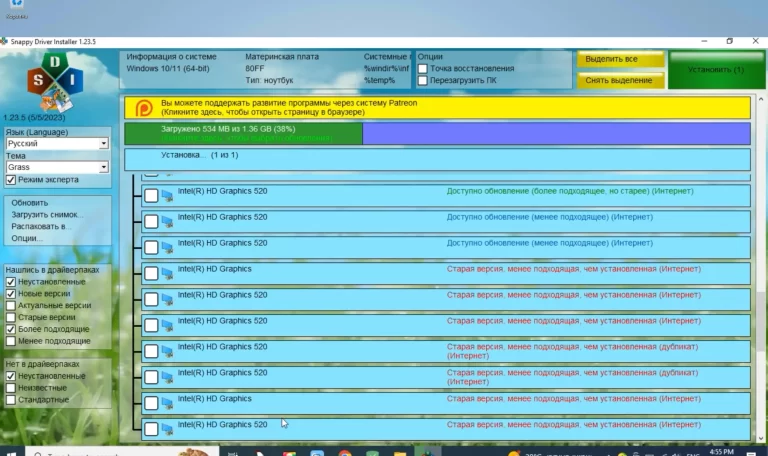
We recommend using specialized programs for automatic driver installation. Such tools greatly simplify the process, saving time and avoiding mistakes when choosing drivers. Popular applications such as Driver Booster, Snappy Driver Installer, and Driver Easy help detect missing or outdated drivers, including monitor drivers.
Here are the main steps for using such programs:
- Download and install the selected program.
- Launch the application, which will automatically scan your system for driver issues.
- Review the list of outdated or missing drivers, including your monitor drivers.
- Select drivers to install and click the update button.
- Restart your computer to complete the changes.
Many programs offer free versions with basic features, but for more advanced functionality, paid versions are worth considering. Programs may also create backups of old drivers, allowing easy system restoration if needed.
Note that using automatic installers requires an internet connection. Make sure the programs you use download drivers only from official sources to ensure system security.
Checking correct driver installation
Make sure the driver is installed correctly by opening Device Manager. Right-click the Start button and select the appropriate option. Find the Monitors section and expand it. If there is no warning icon next to your monitor, the driver is installed correctly.
If a yellow triangle is present, right-click the monitor name and select Update driver. Follow the instructions for automatic update search. If updating is not possible, remove the driver and reinstall it from the official manufacturer website.
Also check the driver version. Right-click the monitor in Device Manager and select Properties. Go to the Driver tab and check the version number. Compare it with the latest version available on the manufacturer’s website.
After installing the driver, restart your computer. This will activate the changes. Check screen resolution: right-click the desktop and select Display settings. Make sure the resolution matches your monitor specifications.
If display issues occur, reset the monitor settings to factory defaults using the monitor’s control menu. After resetting, check operation again.
Keep drivers updated; this improves performance and compatibility with new applications. Use automatic update tools if available on the manufacturer’s website or schedule regular checks.
Solving issues with incompatible drivers
Check driver compatibility with your monitor model. Download drivers only from official manufacturer websites; third-party sources may contain outdated or incorrect versions.
Update your graphics card driver. Some issues may arise due to mismatches between monitor and graphics driver versions. Find the latest updates on your graphics card manufacturer’s website.
Use Device Manager. Open it via the “Start” menu, find your monitor, right-click it, and select “Update driver”. Choose automatic search so the system can find and install a compatible version.
If the issue persists, uninstall the current driver. Return to Device Manager, right-click the monitor, and select “Uninstall device”. Restart your computer and run automatic driver update again.
Try switching to standard drivers. In Device Manager, select “Update driver”, then “Browse my computer for drivers”, and choose the default Windows driver. This may help establish basic display functionality.
Check compatibility settings. Right-click the driver installer file, select “Properties”, then the “Compatibility” tab. Make sure the correct Windows version is selected for installation.
If none of the methods work, contact the manufacturer’s technical support. Describe your issue in detail, including the monitor model and operating system version. This will speed up the solution process.