How to update graphics card drivers
Regular updating of graphics card drivers is a key factor in ensuring stable and efficient performance of your computer. Updated drivers not only improve system performance, but also fix possible errors and ensure compatibility with new applications and games.
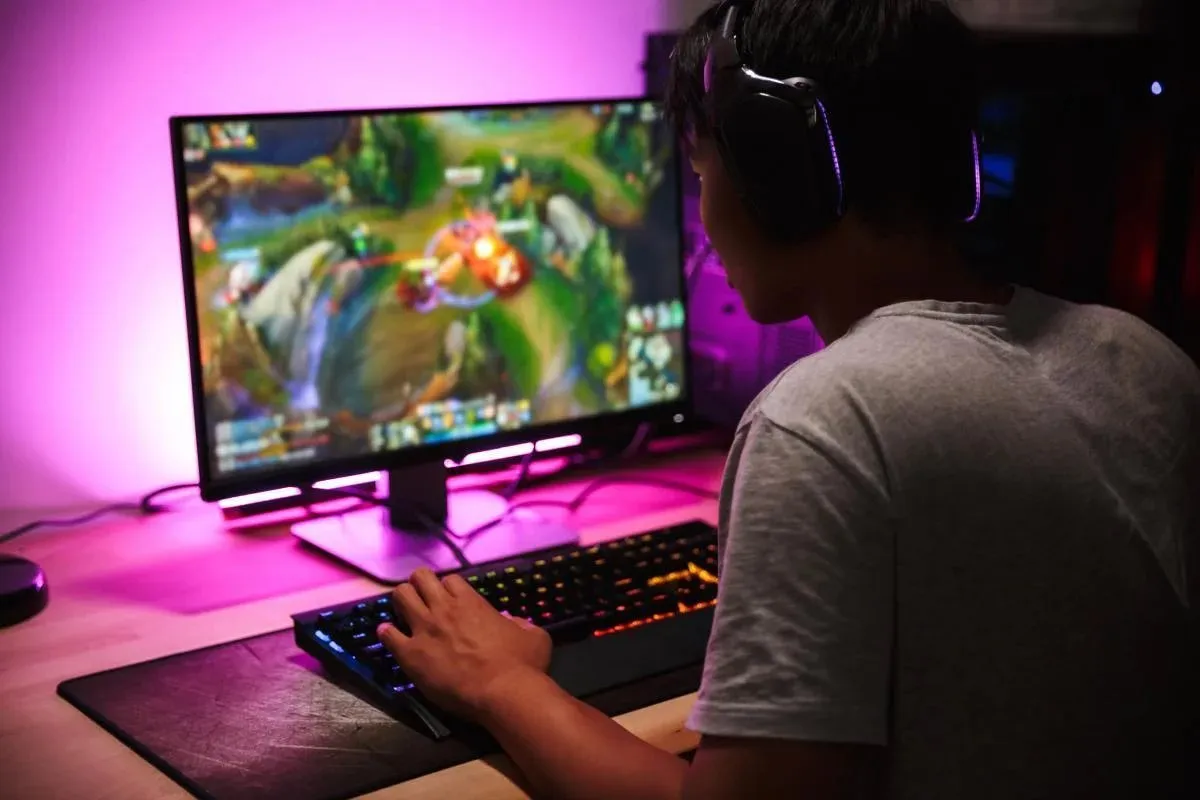
Why is it important to update graphics card drivers?
Graphics card drivers act as a bridge between the operating system and hardware, allowing the graphics adapter to be used as efficiently as possible. Regular driver updates provide the following benefits:
- Performance improvement: New driver versions often include optimizations that increase the speed of graphics applications and games.
- Bug fixes: Updates fix discovered bugs and improve system stability.
- Compatibility with new applications: Modern games and programs require up-to-date drivers for proper operation.
How to determine whether a driver update is needed?
It is recommended to regularly check for graphics card driver updates. Signs that an update may be needed include:
- Reduced performance in games and applications: when previously stable programs start lagging or freezing.
- Graphical artifacts: appearance of distortions or incorrect rendering of graphics.
- Graphics-related errors: error messages related to graphics components, such as “OpenGL Error”.
How to find out your graphics card model?
Before updating drivers, you need to determine the exact model of your graphics card:
- Through “Device Manager”:
- Right-click “My Computer” or “This PC” and select “Manage”.
- In the opened window, select “Device Manager”.
- Expand the “Display adapters” section — here you will see your graphics card model.
- Using third-party utilities: Programs such as Speccy provide detailed information about your computer hardware, including the graphics card model.
Ways to update graphics card drivers
There are several methods to update drivers:
- Through the official manufacturer website:
- NVIDIA:
- Go to the official NVIDIA website.
- Specify your graphics card model and operating system.
- Download and install the provided driver by following the installer instructions.
- AMD:
- Visit the AMD support page.
- Select your graphics card from the list and download the appropriate driver.
- Run the installer and follow the instructions.
- Intel:
- Go to the Intel support website.
- Use the automatic driver detection tool to find and install the latest versions.
- NVIDIA:
- Using built-in Windows tools:
- Open “Device Manager”.
- Expand the “Display adapters” section.
- Right-click your graphics card and select “Update driver”.
- Choose “Search automatically for updated driver software”.
- Follow the system instructions.
Note that this method does not always provide the latest driver versions.
- Using specialized utilities:
- NVIDIA GeForce Experience: a program for automatic driver updates and game optimization.
- AMD Radeon Software: provides tools for driver updates and graphics settings configuration.
- Intel Driver & Support Assistant: a utility for automatic detection and installation of Intel drivers.
These programs can be downloaded from the official websites of the respective manufacturers.
What to do if the update fails?
If you encounter problems during driver updates:
- Remove old drivers: Use Display Driver Uninstaller (DDU) to completely remove current drivers before installing new ones.
- Check compatibility: Make sure the downloaded driver matches your graphics card model and operating system version.
- Contact support: If problems persist, contact your graphics card manufacturer’s support service or visit specialized forums for help.
Regular graphics card driver updates ensure optimal computer performance, improve productivity and compatibility with new applications, and contribute to system security.