Solving problems with sound card drivers on Windows: from diagnostics to fixing errors
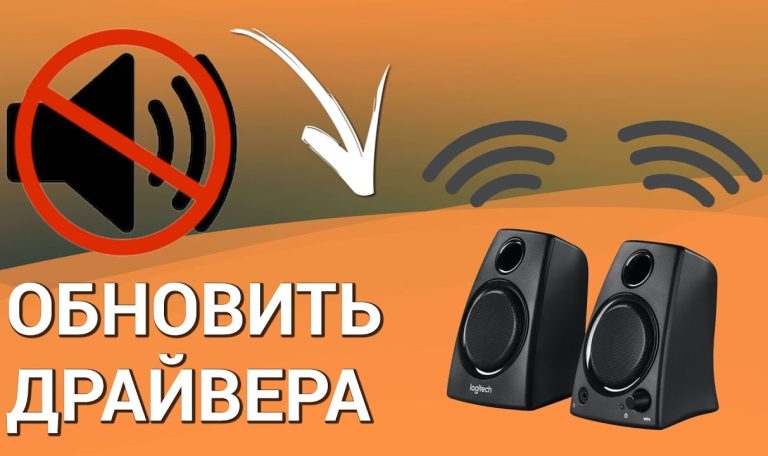
Sound problems on a computer are often related to outdated or incorrectly installed sound card drivers. First, make sure you have the latest driver version installed. Go to your sound card manufacturer’s website and download the latest driver.
If you do not have internet access, you can use built-in Windows tools. Right-click the “Start” button and select “Device Manager”. Find the “Sound, video and game controllers” section, select your sound card, right-click it, and choose “Update driver”. Follow the on-screen instructions.
If you detect issues with the audio device, check sound settings. Right-click the sound icon in the notification area and select “Open sound settings”. Make sure the correct playback device is selected by default. Sometimes the system may automatically switch to another device, and you need to set the required one manually.
If the steps above do not help, try uninstalling and reinstalling the driver. In “Device Manager”, select your sound card, click “Uninstall device”, then restart your computer. Windows will try to install the driver automatically.
If the problem persists, check for Windows updates. Sometimes system updates include fixes for hardware drivers. Go to “Settings” → “Update & Security” and download available updates.
How to check sound card functionality in Windows?
To quickly test sound, click the device, select “Properties”, then “Test”. If you hear sound, the card is working correctly.
If the device cannot play sound, check the following parameters:
| Problem | Solution |
|---|---|
| No sound | Check the volume level in Windows and switch output to the correct device. |
| Driver not installed | Update the driver via “Device Manager”. Right-click the sound card and select “Update driver”. |
| Distorted sound | Run the audio troubleshooter in “Settings”. |
| Sound works in headphones but not in speakers |
Finally, for additional checking, open “Control Panel”, go to “Sound”. Make sure the device is set as default and try playing audio via a media player. If sound works in the media player, the issue may be related to a specific application or its settings.
Updating sound card drivers: step-by-step instructions
Open “Device Manager” by pressing Win + X and selecting the appropriate option from the menu.
Expand the “Sound, video and game controllers” section. Find your sound card in the list. Right-click the device and select “Update driver”.
A window with two options will appear. Choose “Search automatically for updated driver software”. Windows will start searching for the latest drivers online.
If the system finds a new version, follow the on-screen instructions to complete installation. After updating, restart your computer.
If Windows does not find updates, visit the official website of your sound card manufacturer. Go to the support or download section, enter your device model, and download the latest driver version.
Run the downloaded file and follow the installer instructions. After installation, restart your computer as well.
Sometimes issues may occur due to driver conflicts. In this case, use “Uninstall device” in “Device Manager”, then restart your computer. Windows will reinstall drivers automatically.
Regularly check for driver updates to avoid sound quality and software compatibility issues.
How to roll back a sound card driver to a previous version?
To roll back a sound card driver, follow these steps:
- Open “Device Manager”. Press Win + X and select “Device Manager”.
- Expand “Sound, video and game controllers”. Find your sound card.
- Right-click the sound card and select “Properties”.
- Go to the “Driver” tab and find the “Roll Back Driver” button.
- If the button is available, click it and follow the instructions.
After completion, restart your computer.
If rollback does not fix the issue, try uninstalling the driver and reinstalling it:
- In “Device Manager”, right-click the sound card again.
- Select “Uninstall device” and confirm.
- Restart your computer. Windows will install a default driver automatically.
If the default driver is not suitable, download the required version from the manufacturer’s website.
Where to find and install drivers manually?
Go to your sound card manufacturer’s website. For example, Realtek and Creative Labs provide official drivers on their support pages. Find the support section, enter your device model, download, and install the recommended driver version.
Another option is your motherboard manufacturer’s website. Many sound cards are integrated into motherboards, and drivers can be found in the support section of ASUS, MSI, Gigabyte, etc.
You can also use third-party resources such as DriverGuide or Softpedia, which offer large driver databases. Make sure you download files only from trusted sources to avoid malware.
Do not forget to check updates via Windows Device Manager. Right-click the sound card, select “Update driver”, then “Search automatically for drivers”.
For users looking for older versions, archive sites like OldVersion.com may be useful. Ensure compatibility with your OS before installation.
After downloading, restart your computer to apply changes. Pay attention to system messages during installation.
How to properly uninstall sound card drivers before installing new ones?
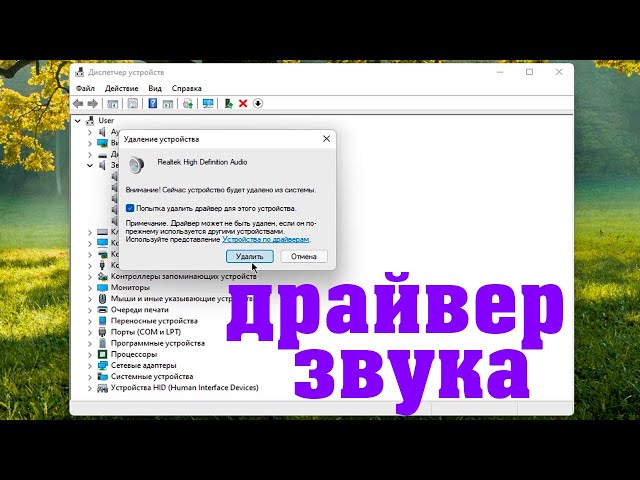
Open “Device Manager” via the Start menu or Win + X shortcut. Find “Sound, video and game controllers”. Right-click the sound card and select “Uninstall device”.
When the confirmation window appears, check “Delete the driver software for this device”. Then click “Uninstall”. This ensures old drivers are fully removed.
Restart your computer. After reboot, open “Device Manager” again and verify the sound card status.
Now download the latest driver version from the official manufacturer website. Run the installer and follow instructions.
After installation, restart the system again to avoid conflicts and ensure proper operation.
Using built-in diagnostic tools to test sound
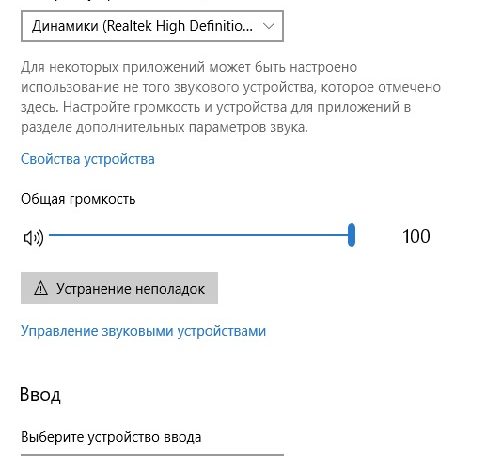
Run the Windows audio troubleshooter. Go to “Settings” > “Update & Security” > “Troubleshoot”. Select “Additional troubleshooters” and find “Playing Audio”. Click “Run” and follow instructions. The system will automatically detect issues and suggest fixes.
If the issue persists, check drivers in “Device Manager”. Find your sound card, right-click it, and select “Update driver”. Choose “Search automatically for updated driver software”.
You can also test microphone functionality. Go to “Settings” > “System” > “Sound”, scroll to “Input”, and select your microphone. Check the input level indicator.
Use “Find and fix audio playback problems” for deeper diagnostics. Type “troubleshooting” in Windows search and open the relevant tool.